
Tutorials
Learn post-prod.io, one task at a time
63 short videos, most under a minute, each showing one thing from start to finish. Every step is written on screen and is a chapter you can jump to; captions are there if you want them.
The tour · 2:44
Everything post-prod.io does, in under three minutes.
18 tutorials
Video Review
Notes on the exact frame, drawings, voice, threads and approvals, in one room.
The overview runs 1:17.
 0:35Leave a note on a framePick the moment on the timeline, type what you mean, post it. The note sits on that exact frame.
 0:41Draw on the frameCircle, point at or box the thing you mean, right on the picture. The drawing becomes the note.
 0:29Voice notesClick the mic and talk: your words land in the note box, tidied. Keep your exact words if you like.
 0:19Reply to a noteAnswer a note right in its thread; when someone answers back, it appears by itself.
 0:26Reply with a pictureAdd an image to a reply, a reference frame or a screenshot, so the thread shows exactly what you mean.
 0:27Reply with a clipAnswer with a short video (up to a minute): an alternative take, a reference, a screen recording.
 0:28ReactionsA quick 👍 or 🔥 instead of a reply, on notes and on replies.
 0:24Mark notes DoneTick a note off once it is fixed (Resolve), see what is done, and reopen one if it needs another look.
 0:26Search and filter notesFind any note by a word, or show only the open ones, the done ones, or one person's.
 0:34Team-only notesNotes for your team only: guests on a share link never see them.
 0:29Approval statusMark a cut In review, Needs changes or Approved. Everyone on the project sees where it stands.
 0:40Versions: V1 and V2 side by sideUpload a new version and the room lines it up with the last one: flip between them at the same moment, or play both side by side.
 0:33Compare two versions: wipe and differenceLine two versions up by content and compare them side by side, with a wipe you drag, or as a difference that lights up what changed.
 0:33Zoom the timelineHold Ctrl (or Alt) and scroll to zoom where the pointer is, drag the zoom bar to move along, press \ to see the whole cut.
 0:23Volume and muteTurn the sound on or off with the speaker and set the volume; the room remembers it.
 0:24Play faster or slowerWatch at half speed to check a cut, or at 1.5x or 2x to get through a long one.
 0:30Keyboard shortcuts: the essentialsSpace plays, arrows step a frame, C leaves a note, D draws, S suggests, B flips Suggested, ? lists them all.
 0:29Reviewing on a phoneThe same room on a phone: the picture stays on top, tap the timeline, type a note at the bottom, react and reply.
18 tutorials
Edit & Render
Suggest real edits on the cut (cuts, zooms, blurs, swaps and more), play them, and render the result.
The overview runs 1:17.
 0:40Suggest a cutTake a part out: pick Cut, set its length on the timeline, say why, add it. Play Suggested to hear it without.
 0:46Suggest a zoom (punch-in)Drag a box round what to push in on. It follows the face by itself; pick how it eases in and how far.
 0:47Tracked zoom on a faceDrag a box round a face: the zoom keeps it framed as they move. Smooth it out if it feels busy.
 0:46Suggest a blurHide a brand, a screen or a face: box it, then pick Blur, Pixelate or a flat Colour and how strong.
 0:41Blur an odd shape with the PenFor shapes a box will not fit, click round it point by point; the mask follows it like any blur.
 0:31A blur that follows what it hidesBox what to hide once; the blur follows it as the camera moves. Try it to watch it stay on.
 0:35Fix a blur that slippedIf a followed blur slips, go to that frame and drag it back: that is a fix point, and it follows again from there.
 0:38Suggest a swap shotShow another picture over part of the cut: upload an image or grab a frame, set how long it stays.
 0:47Suggest a speed changeSpeed a slow part up (or slow one down): pick Speed, choose how fast, add it.
 0:33Suggest an audio changeMute a part, duck it under the voice or make it louder, by how many dB.
 0:41Suggest a text fixWrong words on screen? Box them and type the right ones; the fix is drawn in place.
 0:41Suggest a colour changeTry a different look on a part: brighter, warmer, punchier or black and white, and how strong.
 0:29Original or SuggestedOne click plays the cut as uploaded or with every suggested edit in it. B on the keyboard does the same.
 0:28Render the cut with its editsExport an MP4 with every suggested edit in it, from a preset like YouTube upload or Client preview.
 0:29Render just a sectionExport only part of the cut (with or without its edits) by setting where it starts and ends.
 0:26Save a frame as a PNGSave the frame you are on at full quality, for a thumbnail or a reference. Shift + S does it in one go.
 0:27Send notes to Premiere, Resolve, Final Cut or AvidEvery note comes into your editing app as a timeline marker, at the right frame, from the Editor tab.
 0:21Export the notes as a spreadsheet, PDF or zipTake the notes away as a CSV, a printable PDF with each frame, or a zip of the frames.
2 tutorials
Auto Editor
A first cut from a voiceover or talking head: stutters, repeats and long pauses taken out for you.
The overview runs 0:32.
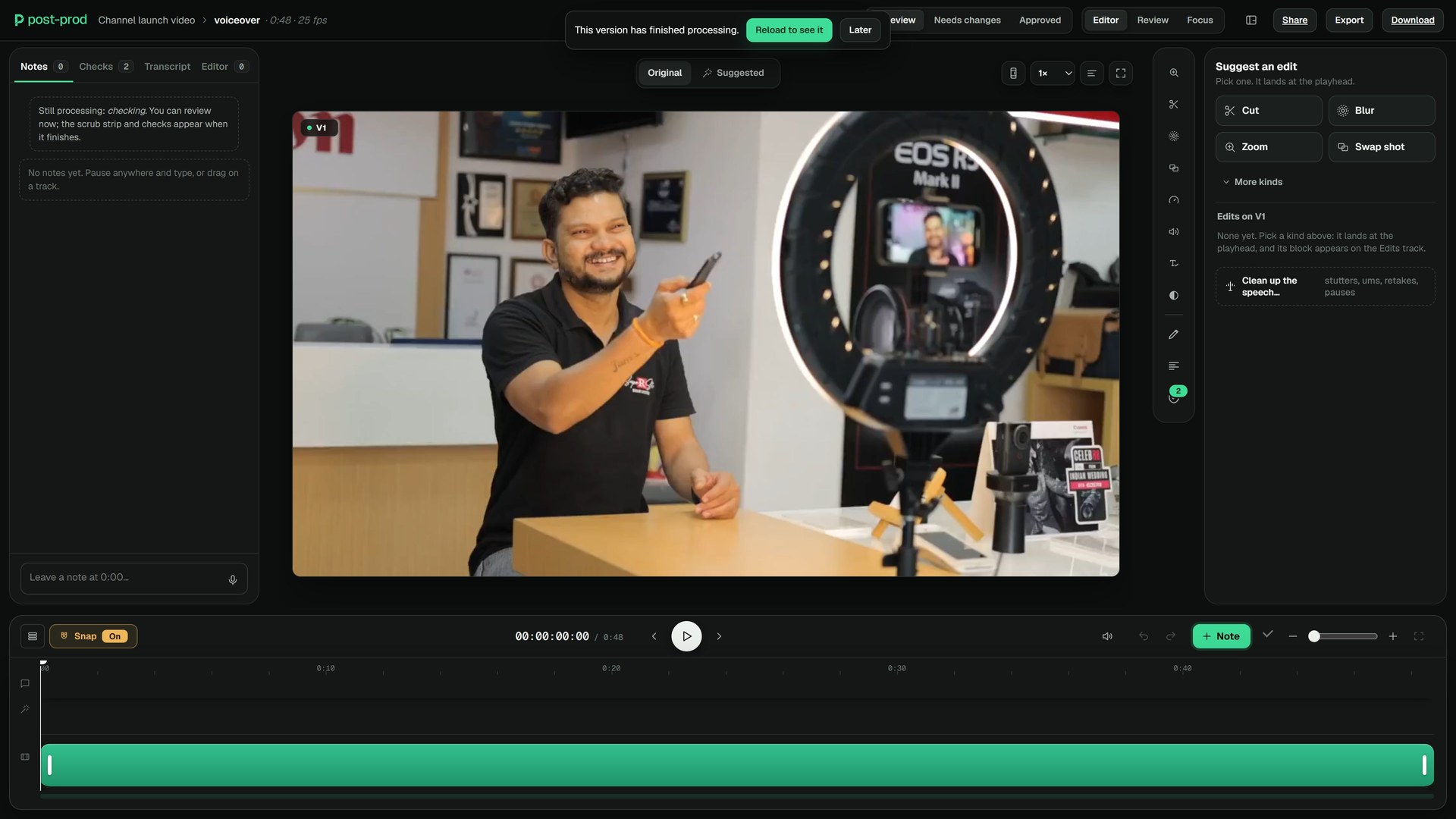
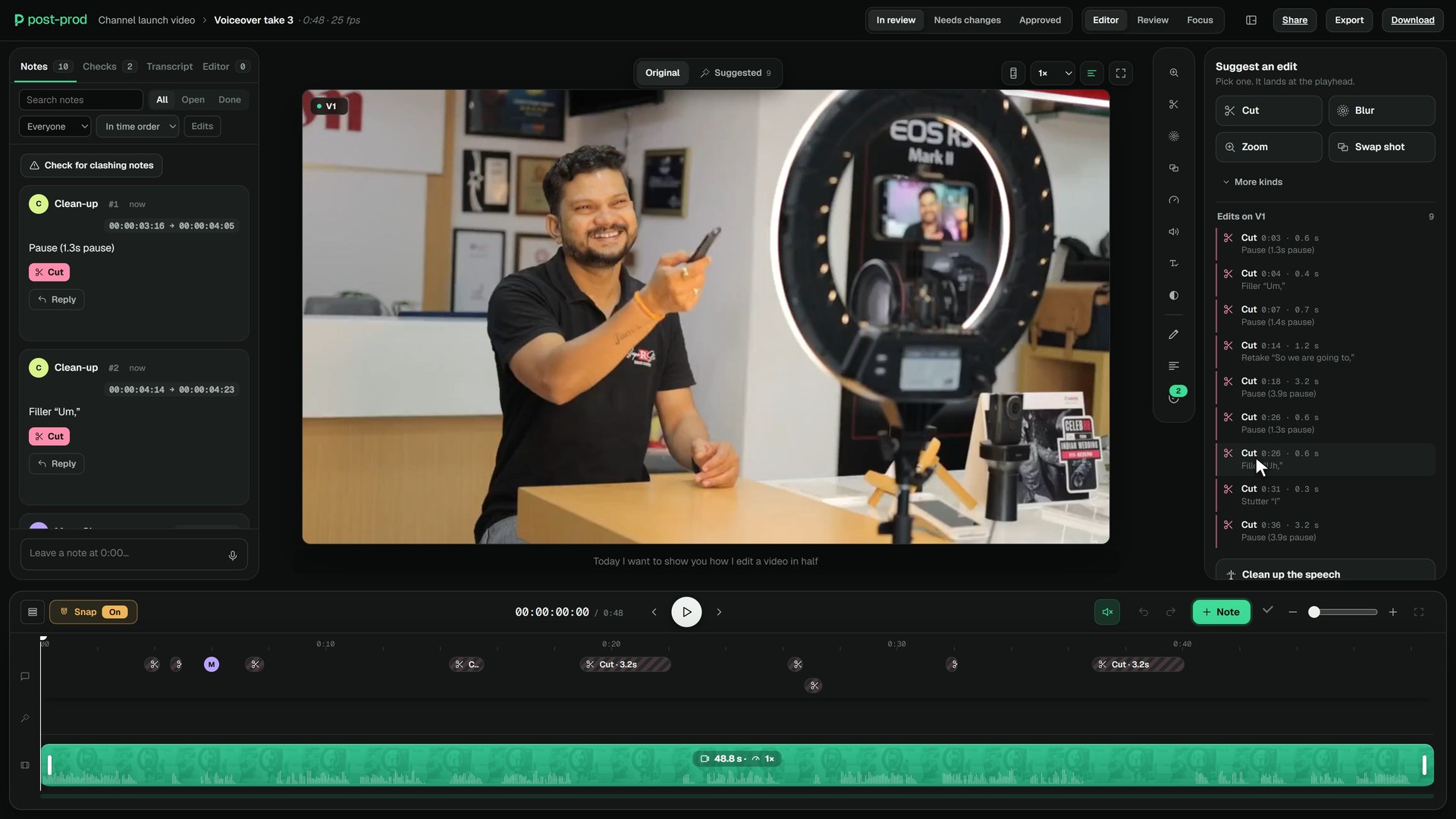
3 tutorials
Thumbnail Review
Notes on a thumbnail, a YouTube feed preview, and a board of references for the designer.
The overview runs 0:46.
 0:25Box notes on a thumbnailBox the exact part of a thumbnail you mean and write the note; it shows when the note is open.
 0:30See a thumbnail in a YouTube feedFeed preview puts your thumbnail and title among feed-sized cards, in dark and light, on desktop and phone.
 0:25Pin reference images for the designerThe References board holds the images and notes your designer should look at, next to the thumbnail.
3 tutorials
Thumbnail Sketcher
Rough out a thumbnail in the browser and check it at feed size before anyone designs it.
The overview runs 0:46.
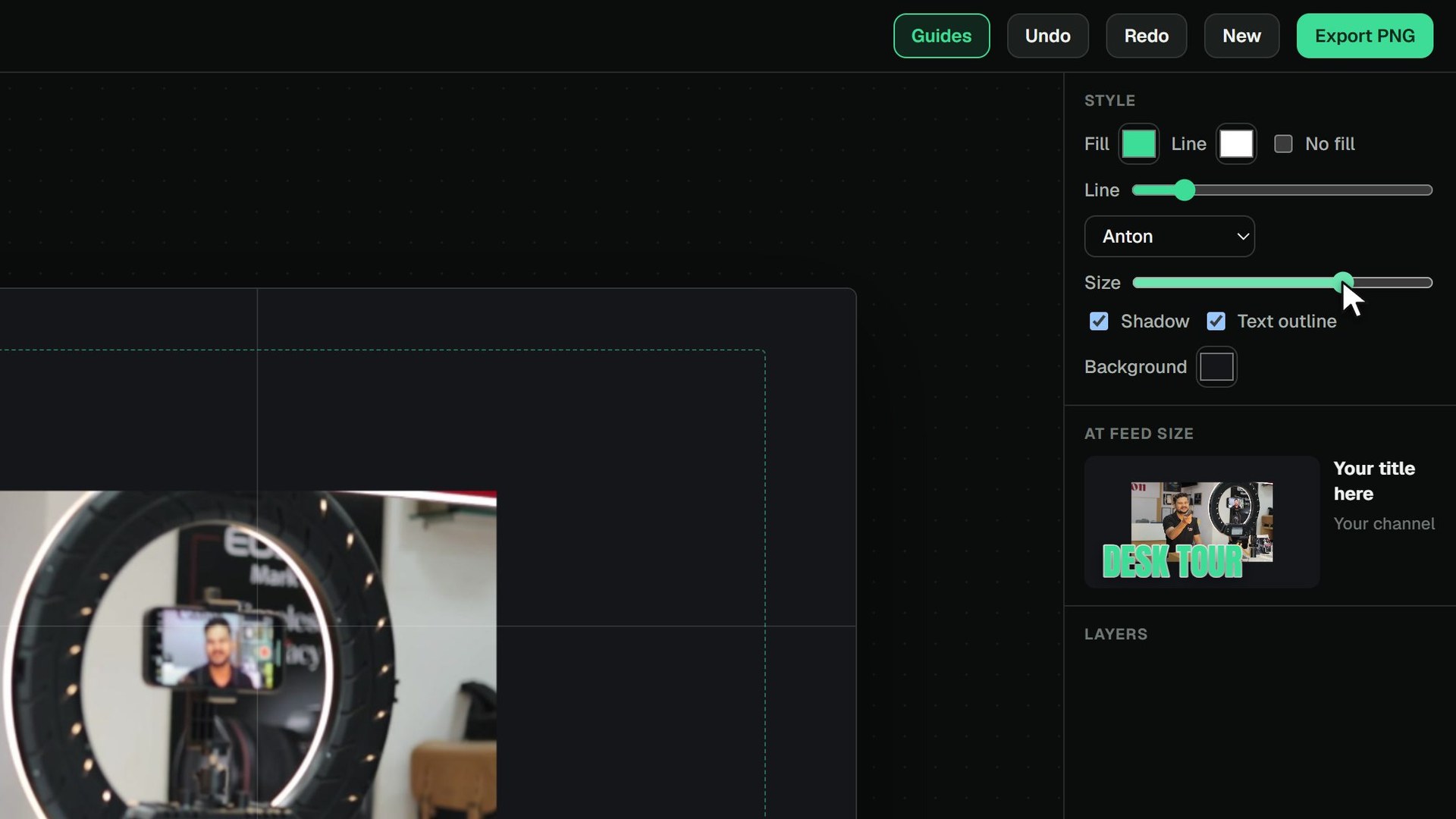 0:23Start a sketch: a frame and bold wordsDrop in a frame with the image tool, then add big words with Text and pick a thumbnail font.
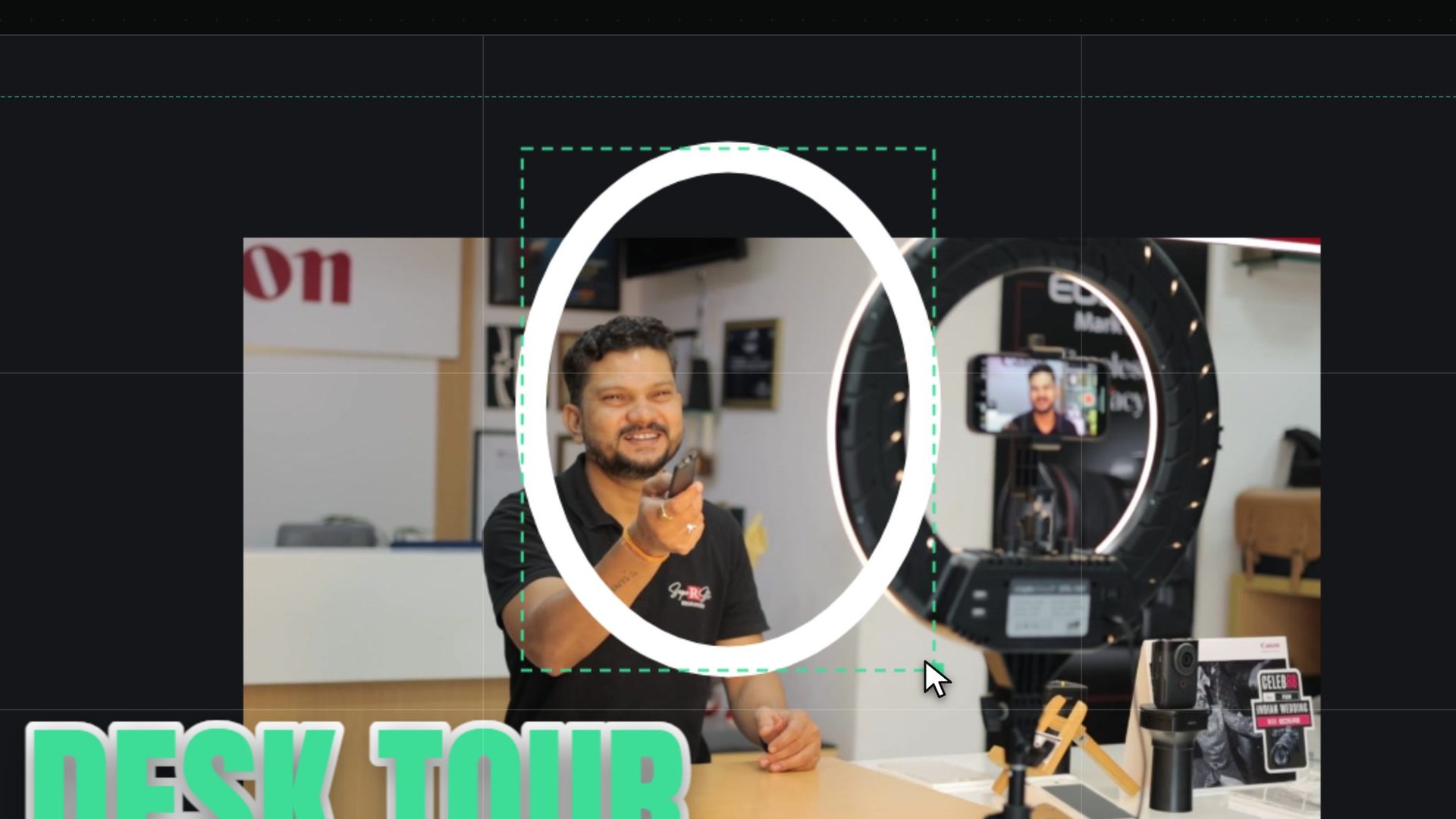 0:25Circle and point at what mattersAdd circles, boxes and arrows with no fill and a bright line, to show the designer where the eye should go.
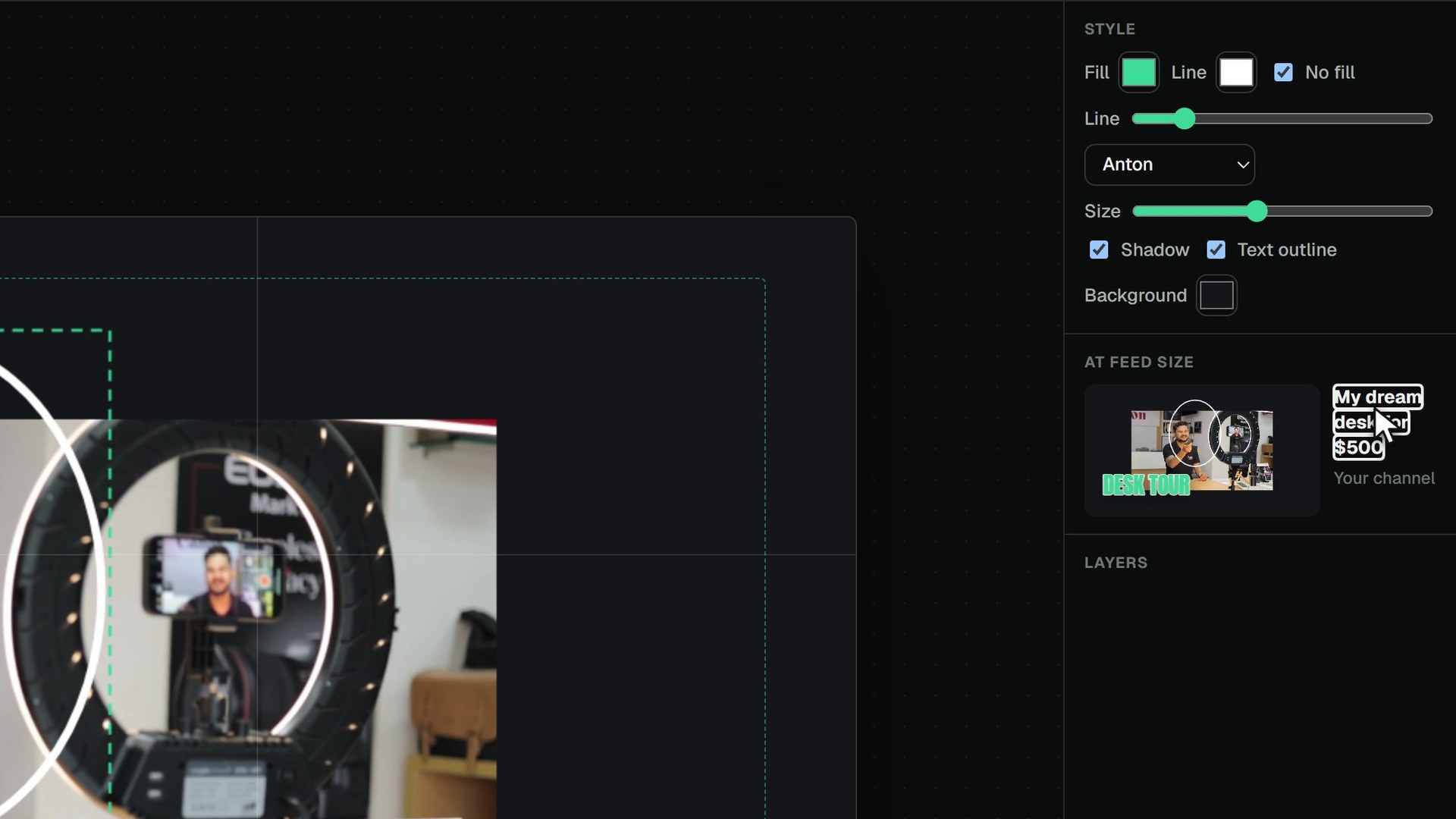 0:21Check a sketch at feed size and export itSee the sketch as small as it shows in a feed, give it a title, then export a PNG to share.
6 tutorials
Sharing & integrations
Share links for clients, guest review, link previews, embeds, QR codes, checklists, chapters and Discord.
The overview runs 1:09.
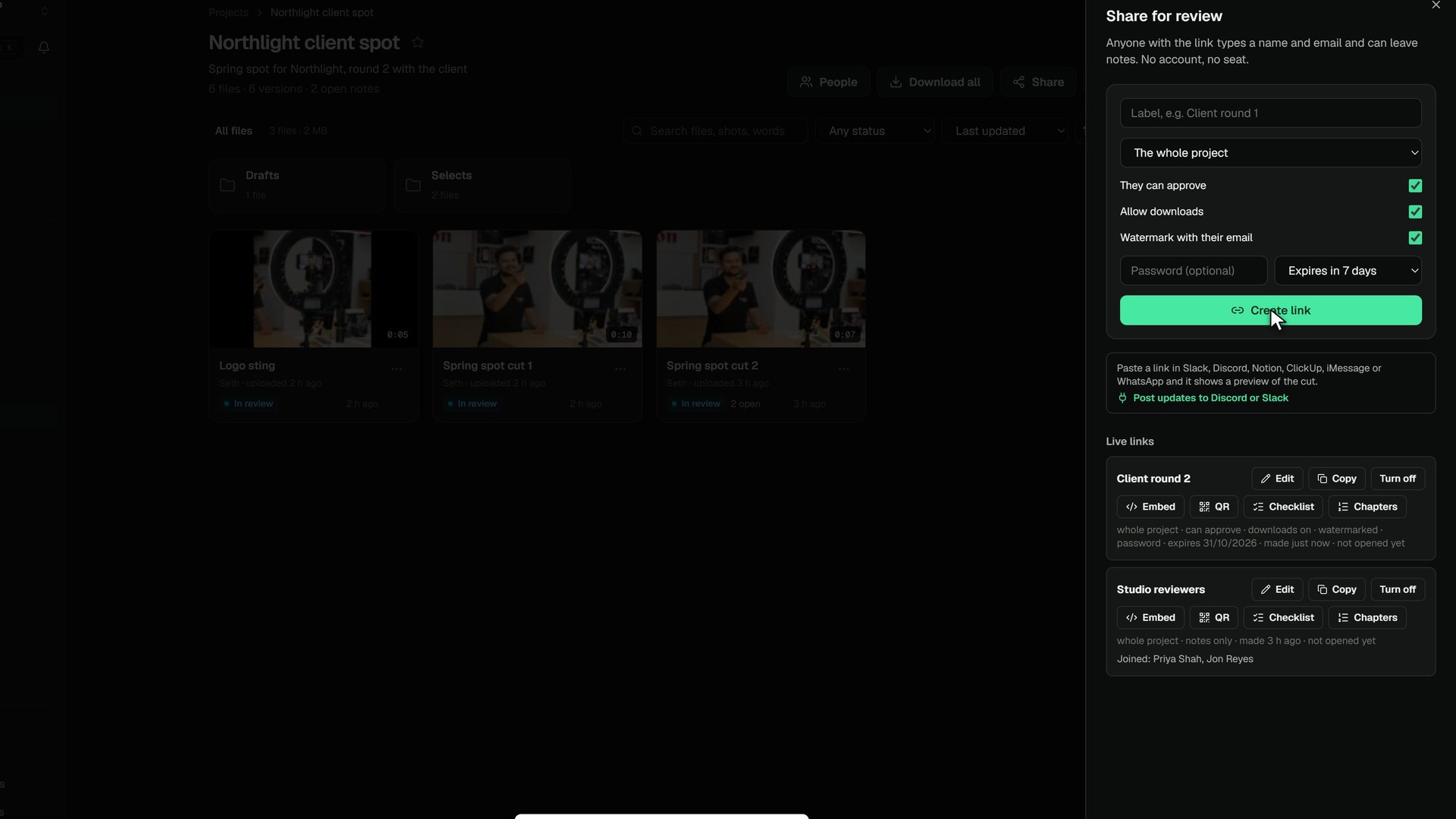 0:37Make a share linkMake a review link for a client: no account needed. Lock it with a password, let it expire, allow downloads, watermark the picture.
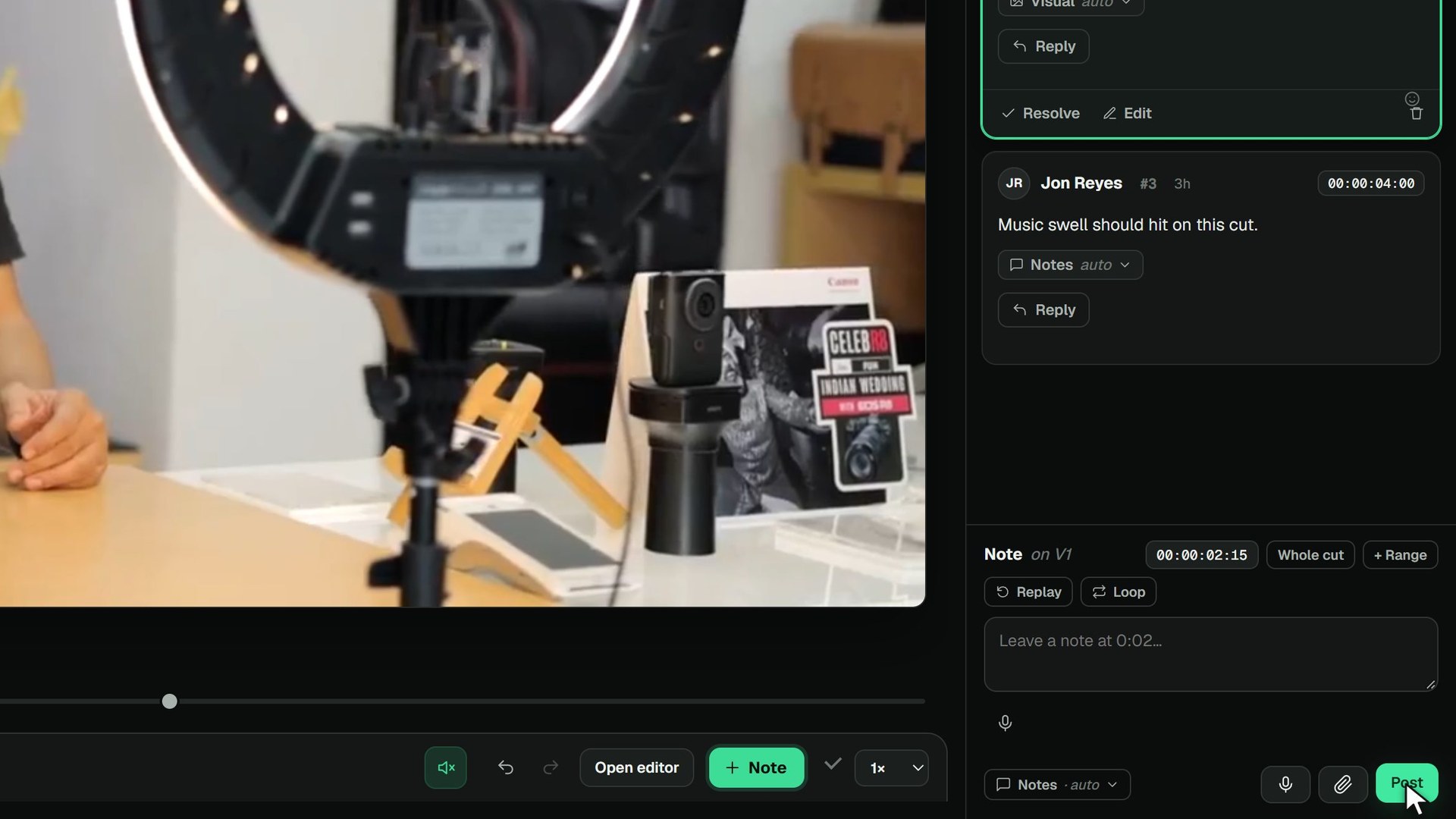 0:33Review from a link, as a guestWhat your client sees: open the link, type a name and email, and leave notes. No account, no seat.
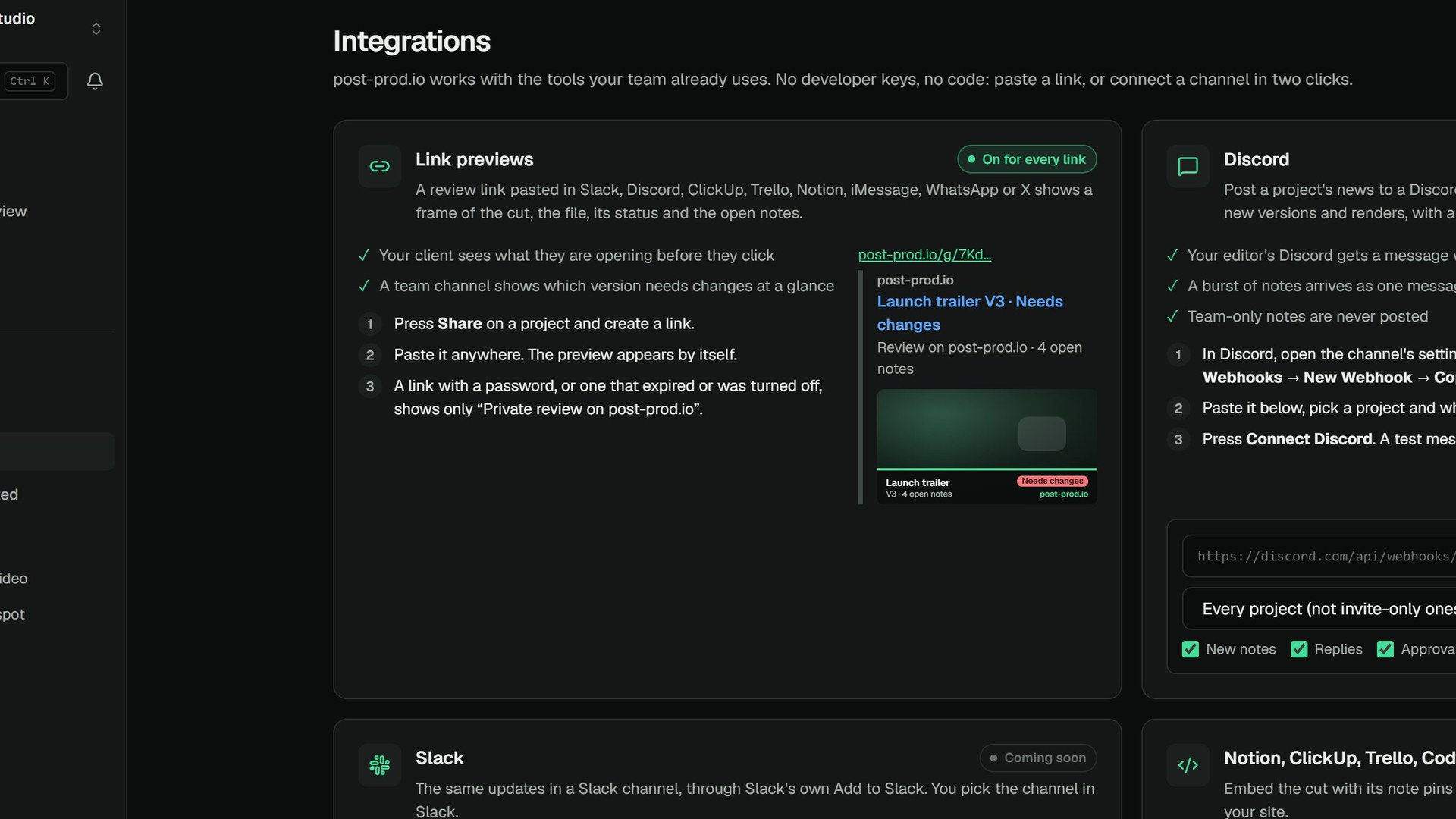 0:17Link previewsPaste a share link in Slack, Discord, Notion, iMessage or WhatsApp and it shows the cut, its status and the open notes.
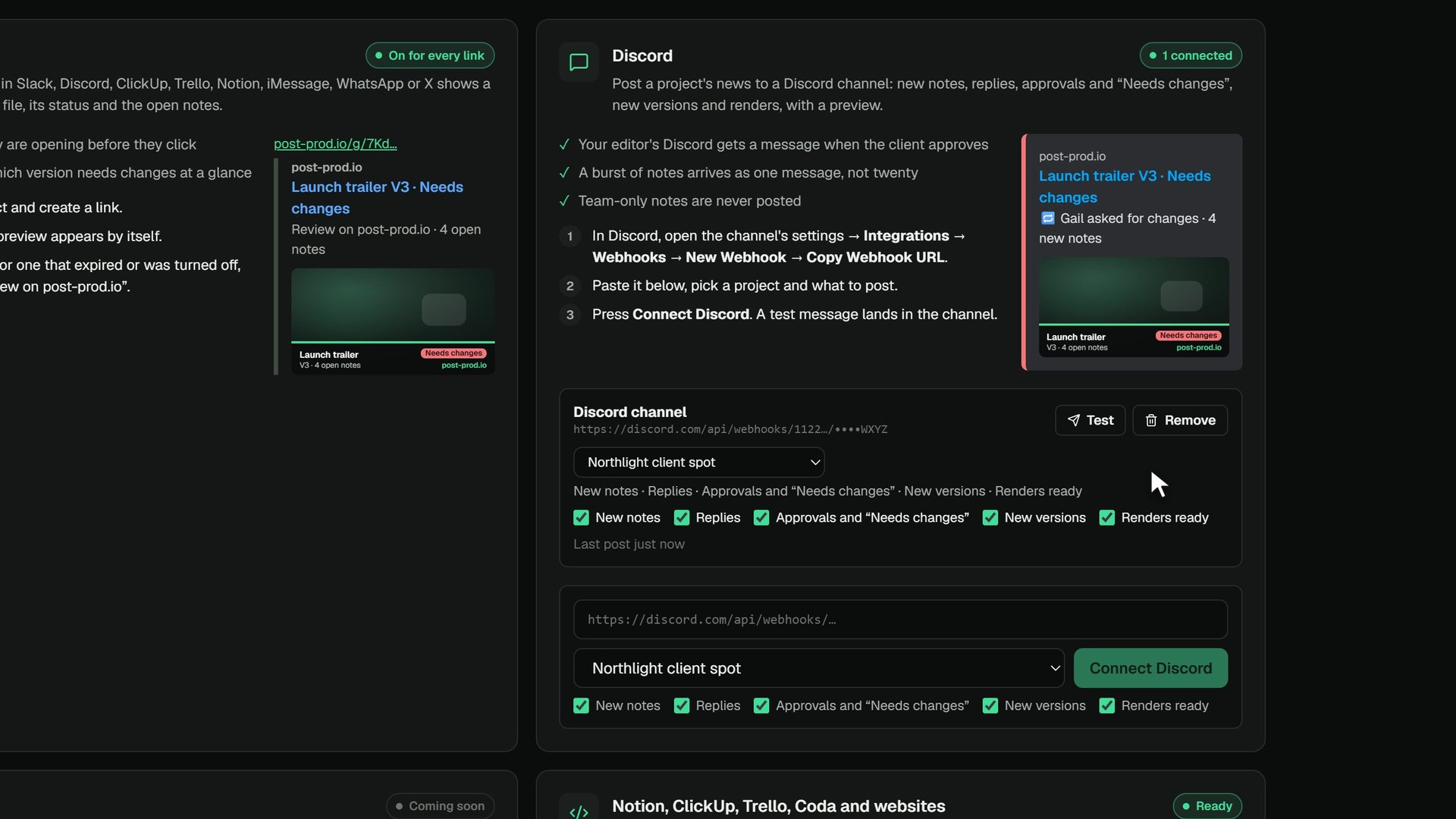 0:24Post updates to DiscordPaste a Discord channel webhook, pick a project and what to post: new notes, replies, approvals, versions, renders.
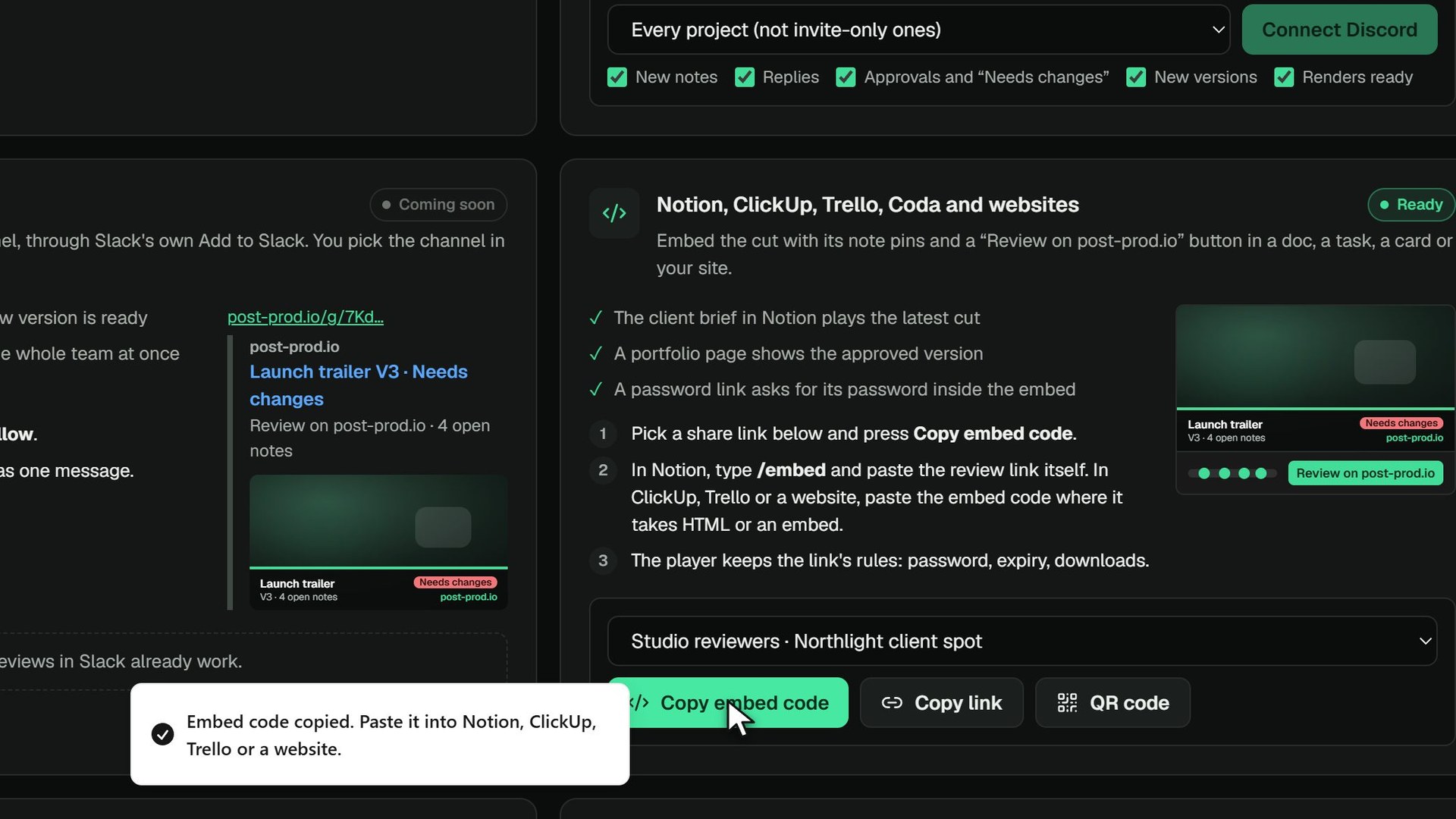 0:21Embed a review, or share it as a QR codeCopy an embed code for Notion, ClickUp or a website, or a QR code to print on a call sheet.
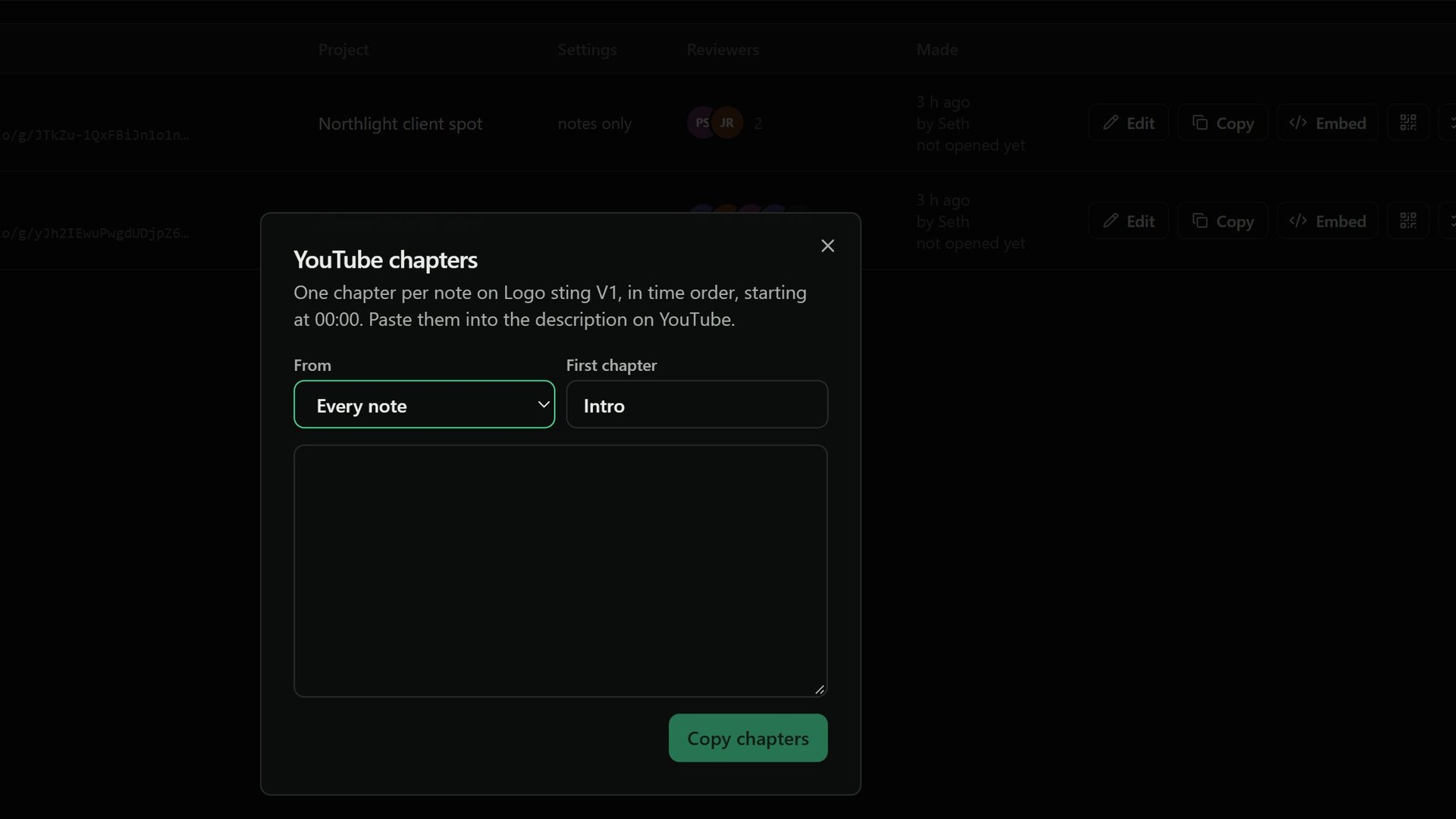 0:22Copy notes as a checklist or YouTube chaptersFrom any share link, copy the notes as a checklist for ClickUp, Trello or Notion, or as YouTube chapters.
9 tutorials
Projects & team
Projects, folders, search and uploads, and the people on your team.
The overview runs 1:14.
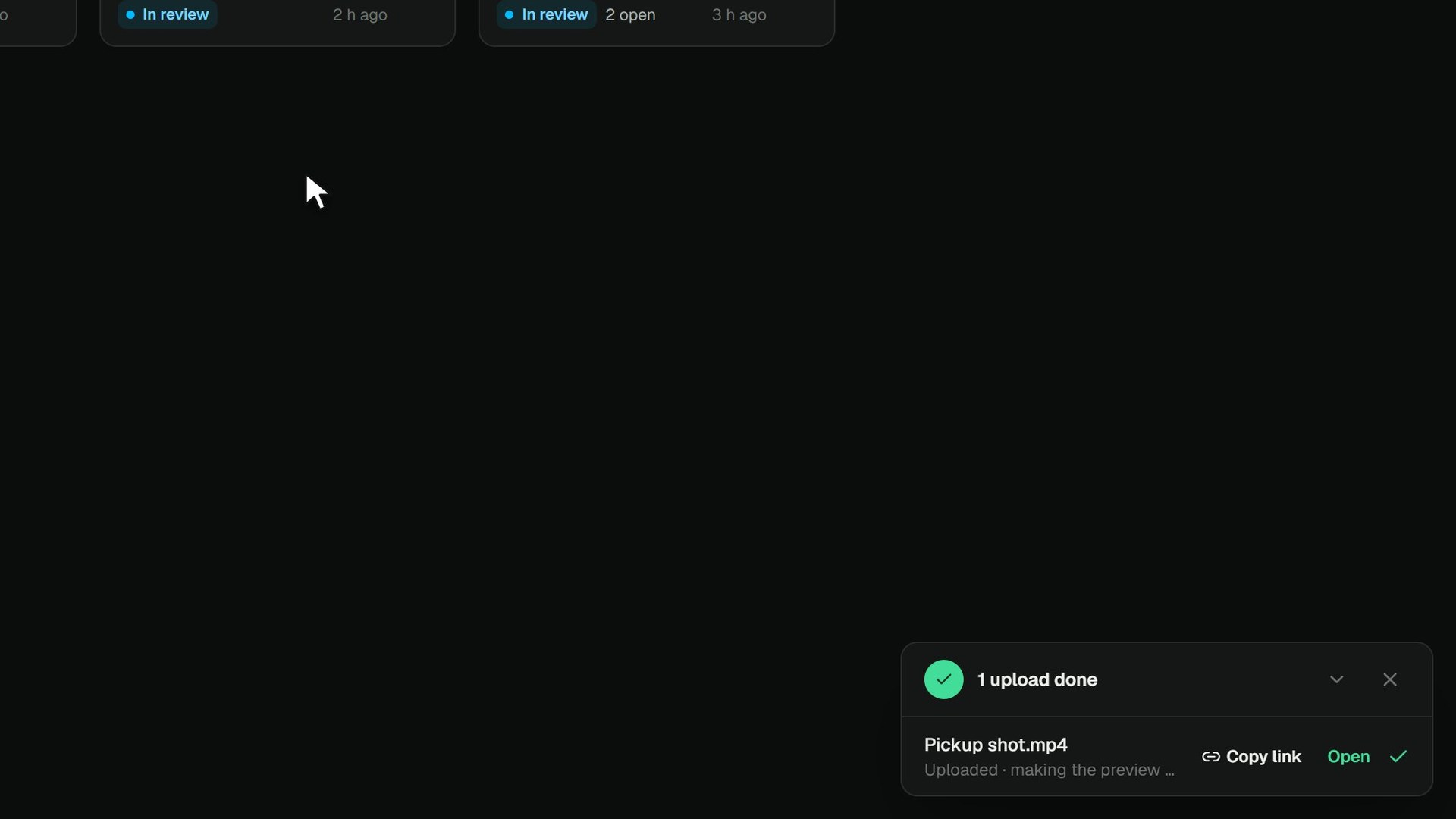 0:18Upload files by dragging them inDrag files from your computer onto a project: they upload in the background and show up ready to review.
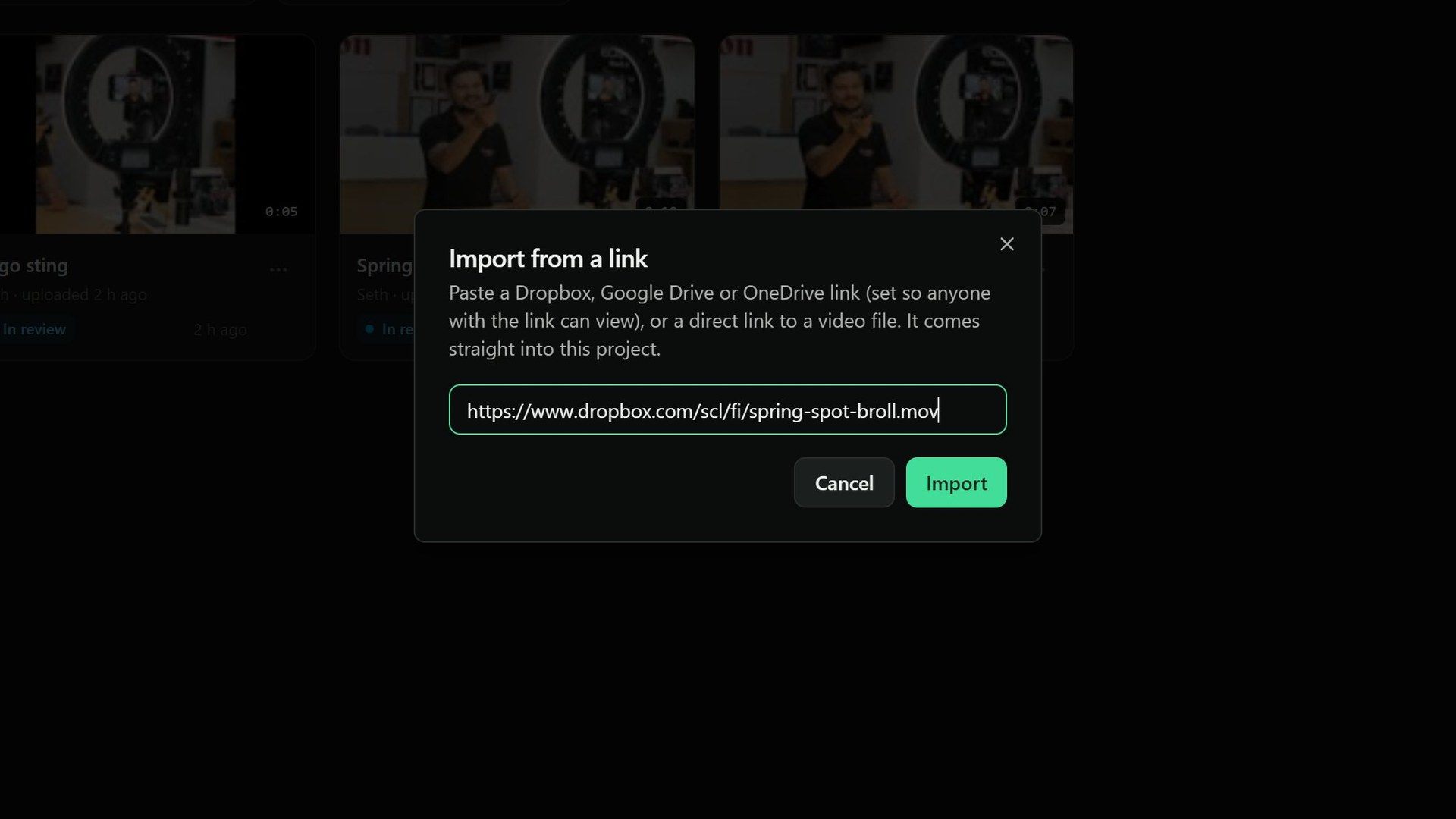 0:23Import from a Drive or Dropbox linkFootage already in Google Drive, Dropbox or OneDrive? Paste the link and it comes straight into the project.
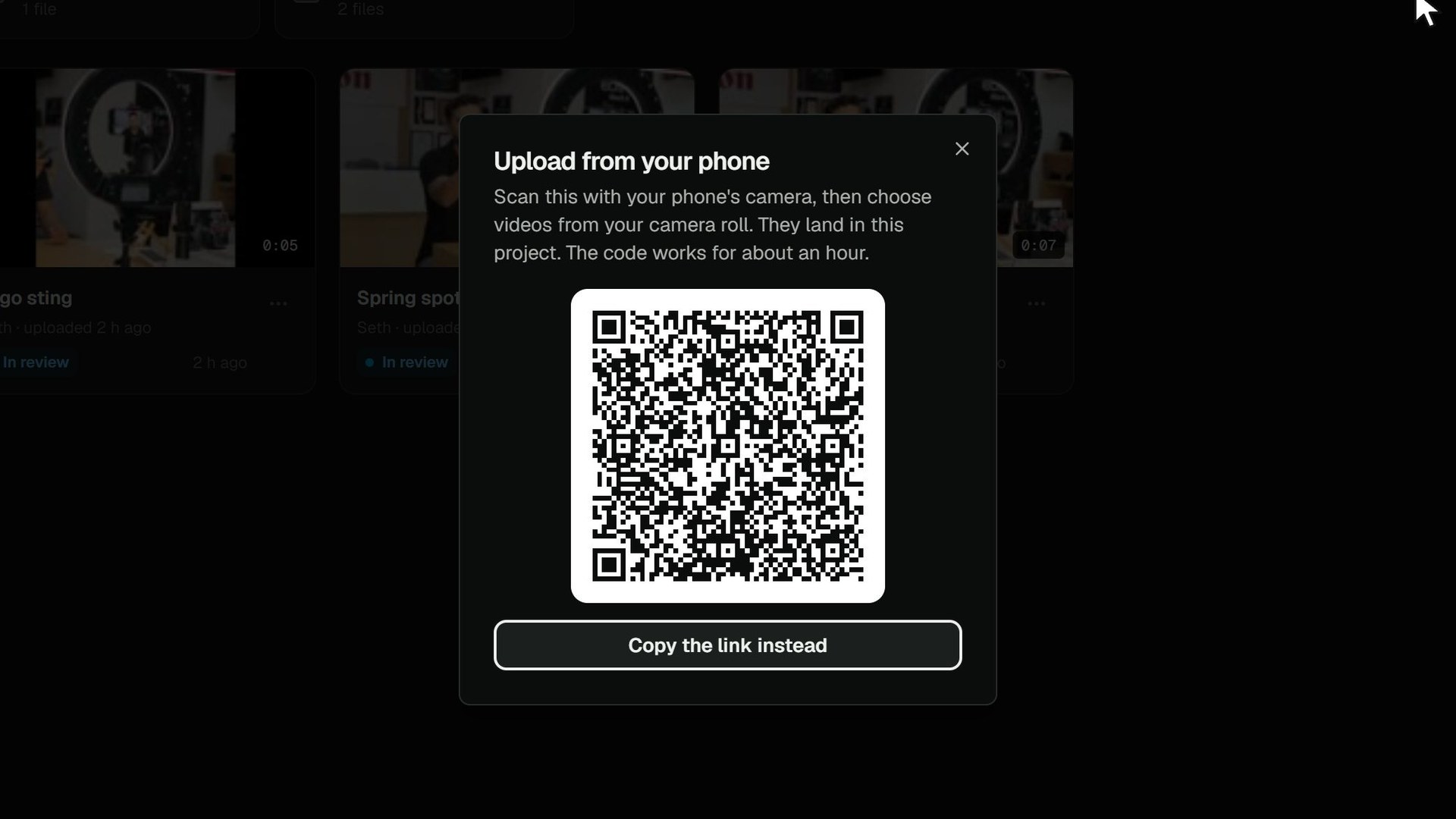 0:24Upload from your phoneOn set? Scan a code with your phone and send footage from its camera roll straight into the project.
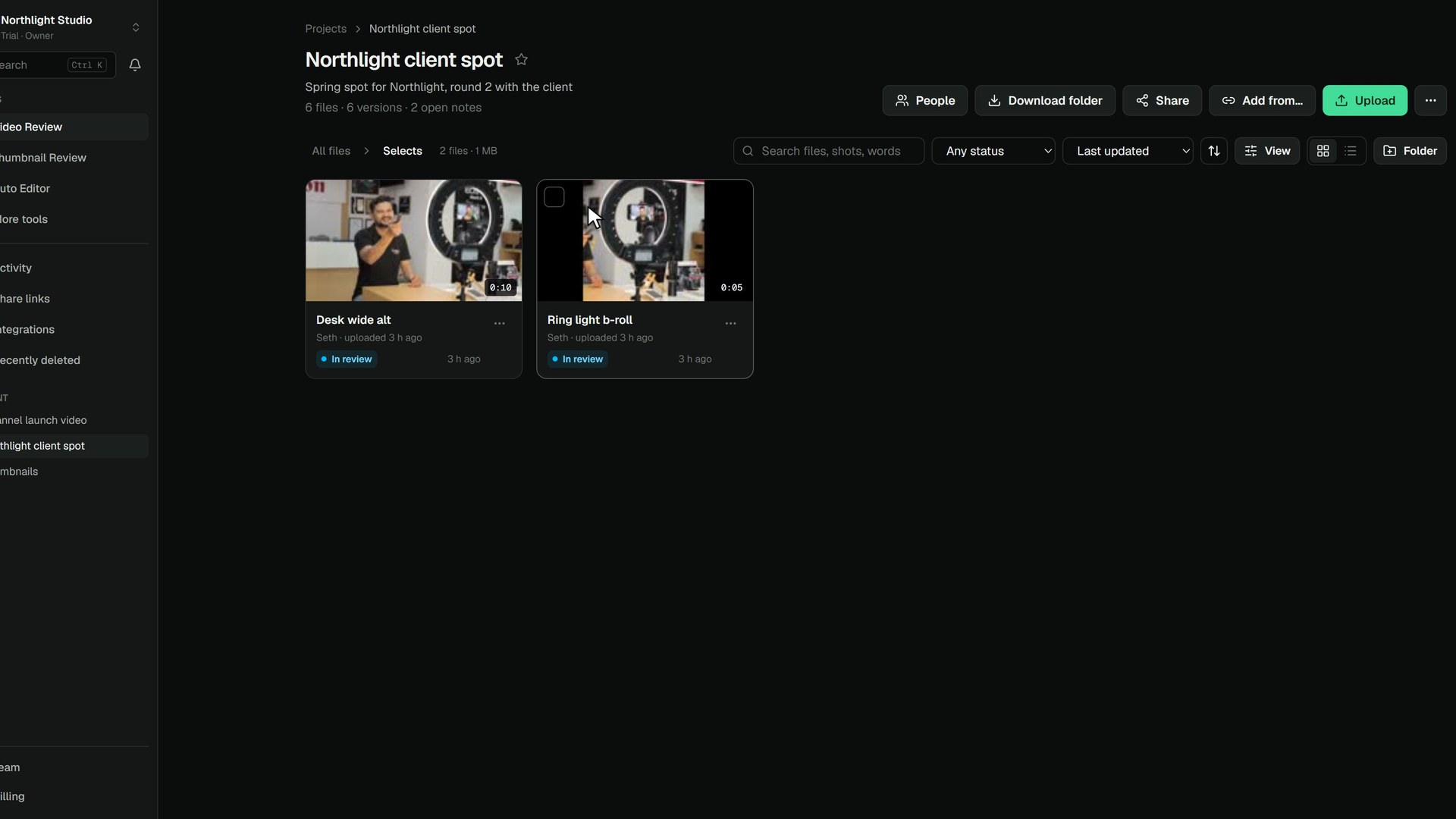 0:25Folders in a projectKeep a project tidy: open a folder, go back to All files, and make a new folder from the Folder button.
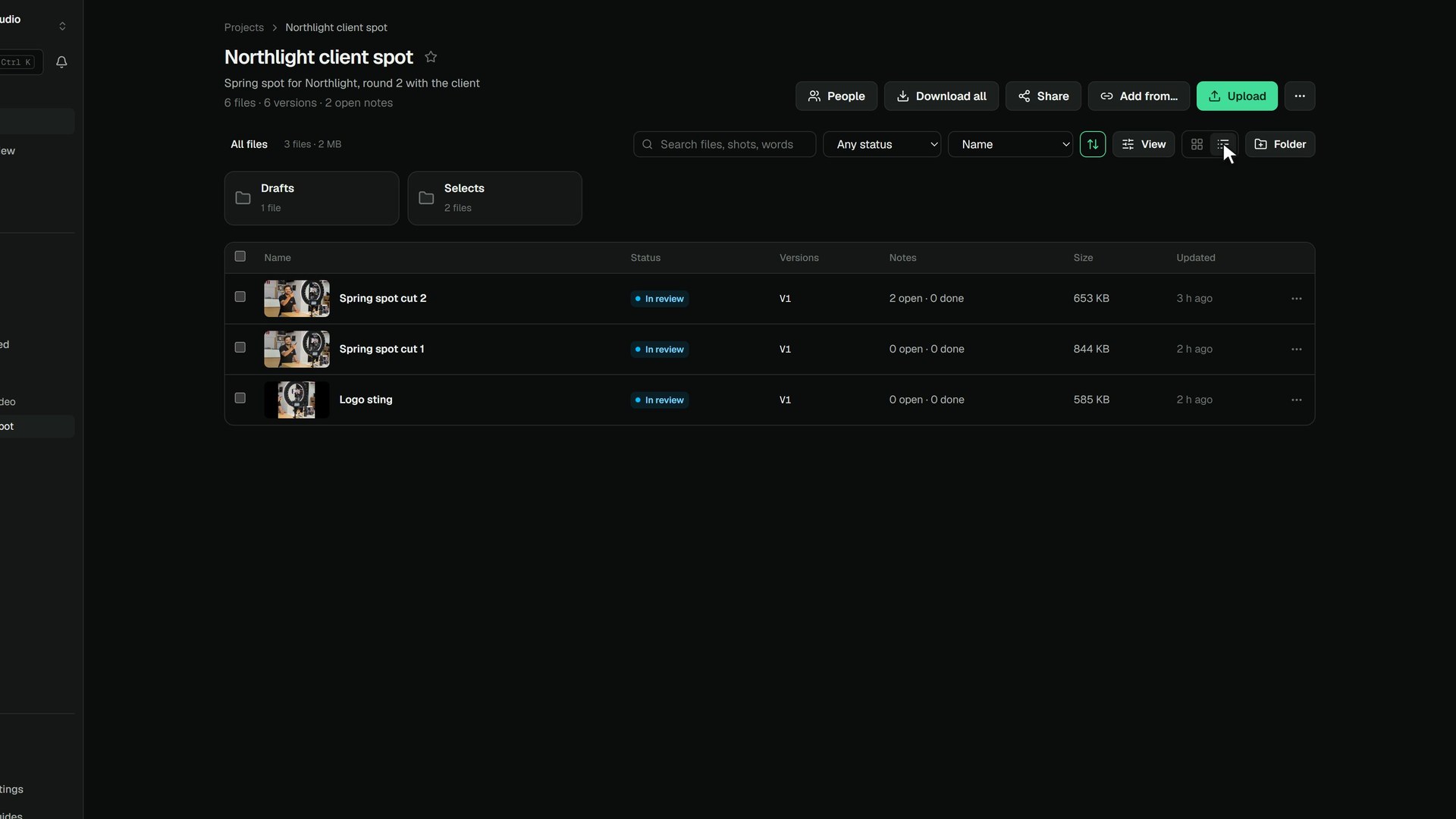 0:31Sort files and change the viewSort by name, size, length, notes or status, flip the order, size the cards, or switch to a list.
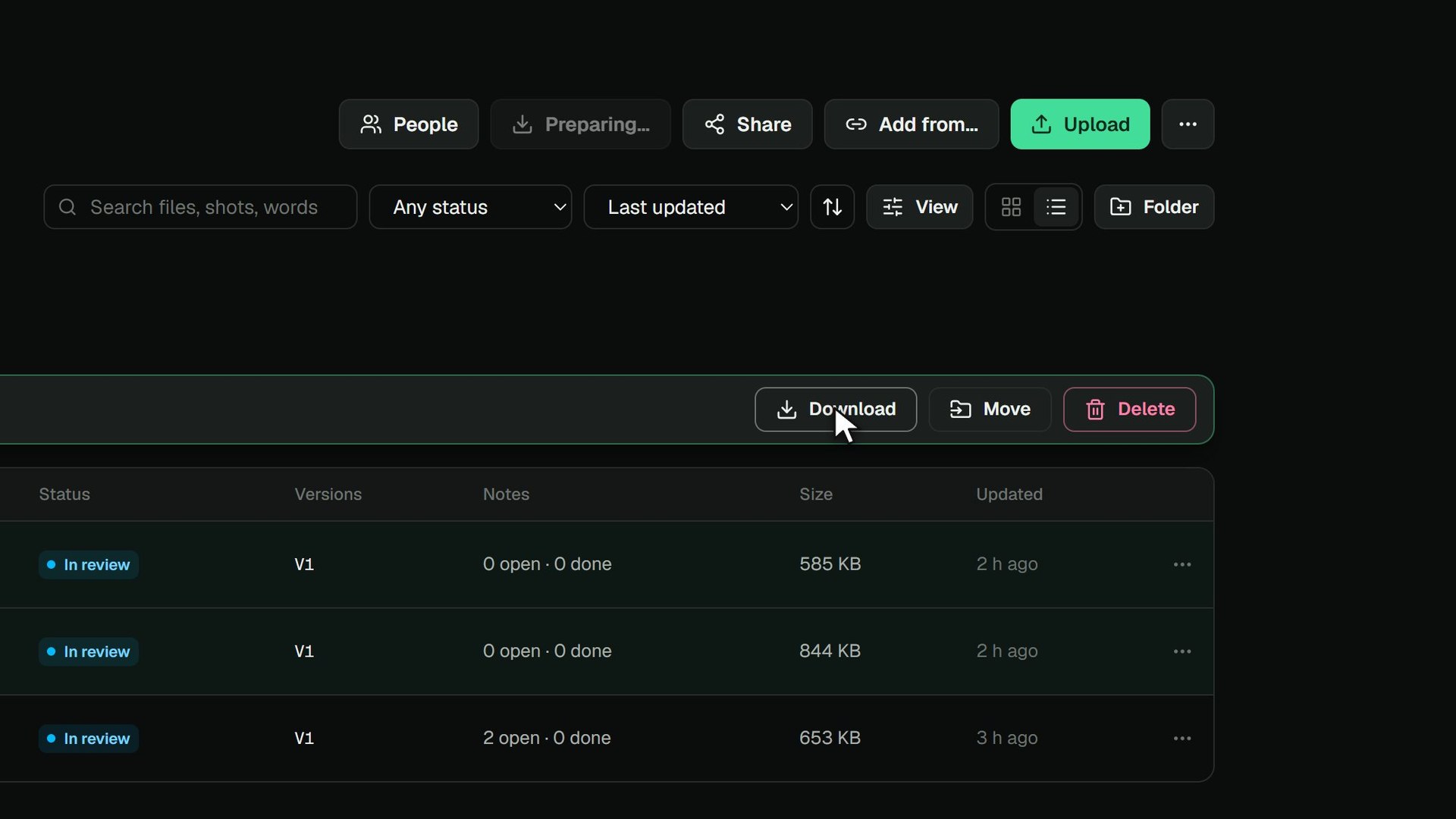 0:21Download files, or the whole projectTick the files you want and download them as one zip, or use Download all for everything in the project.
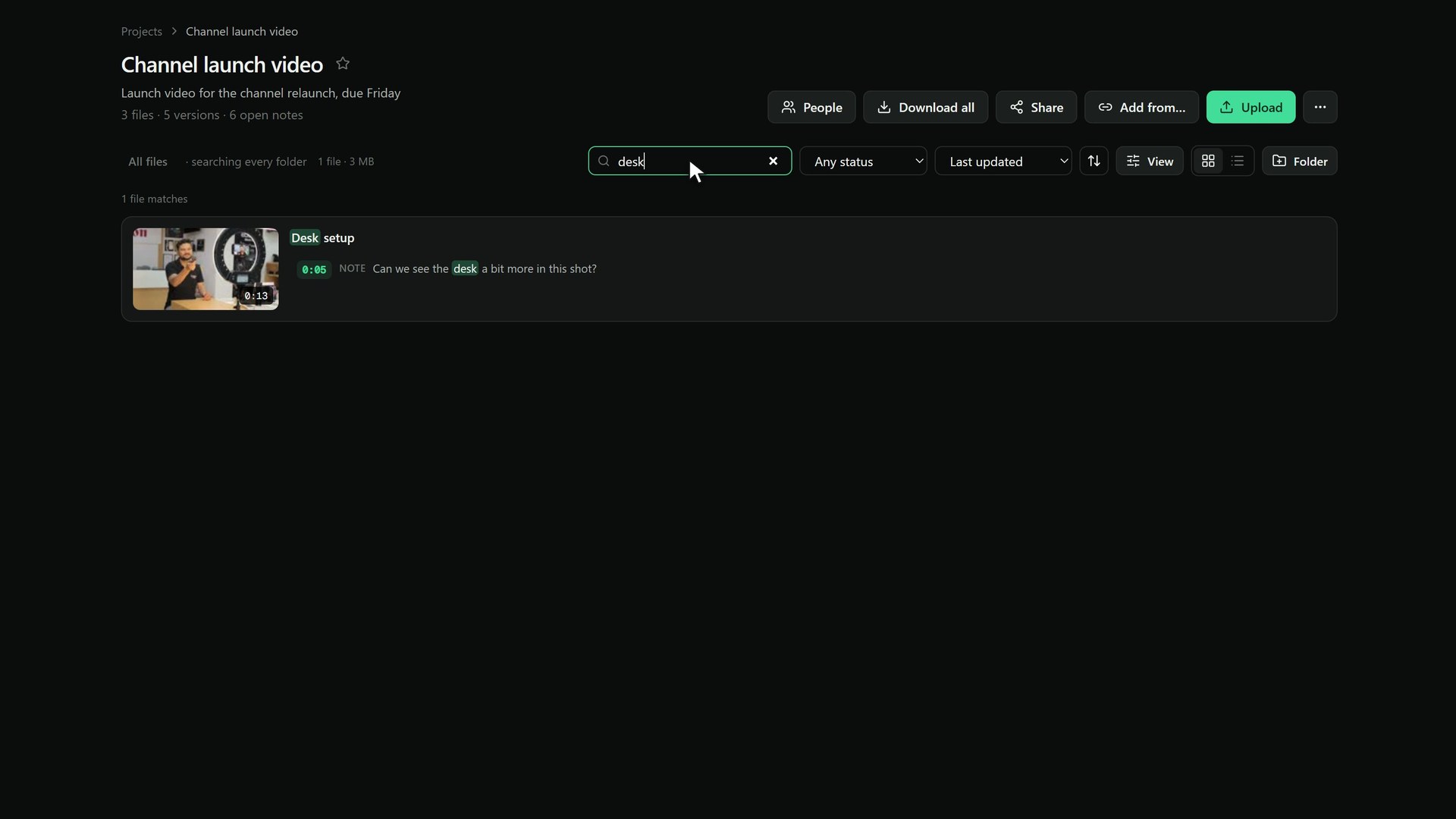 0:27Search a projectType a word to find files, notes and what is said. A hit opens the room at that moment.
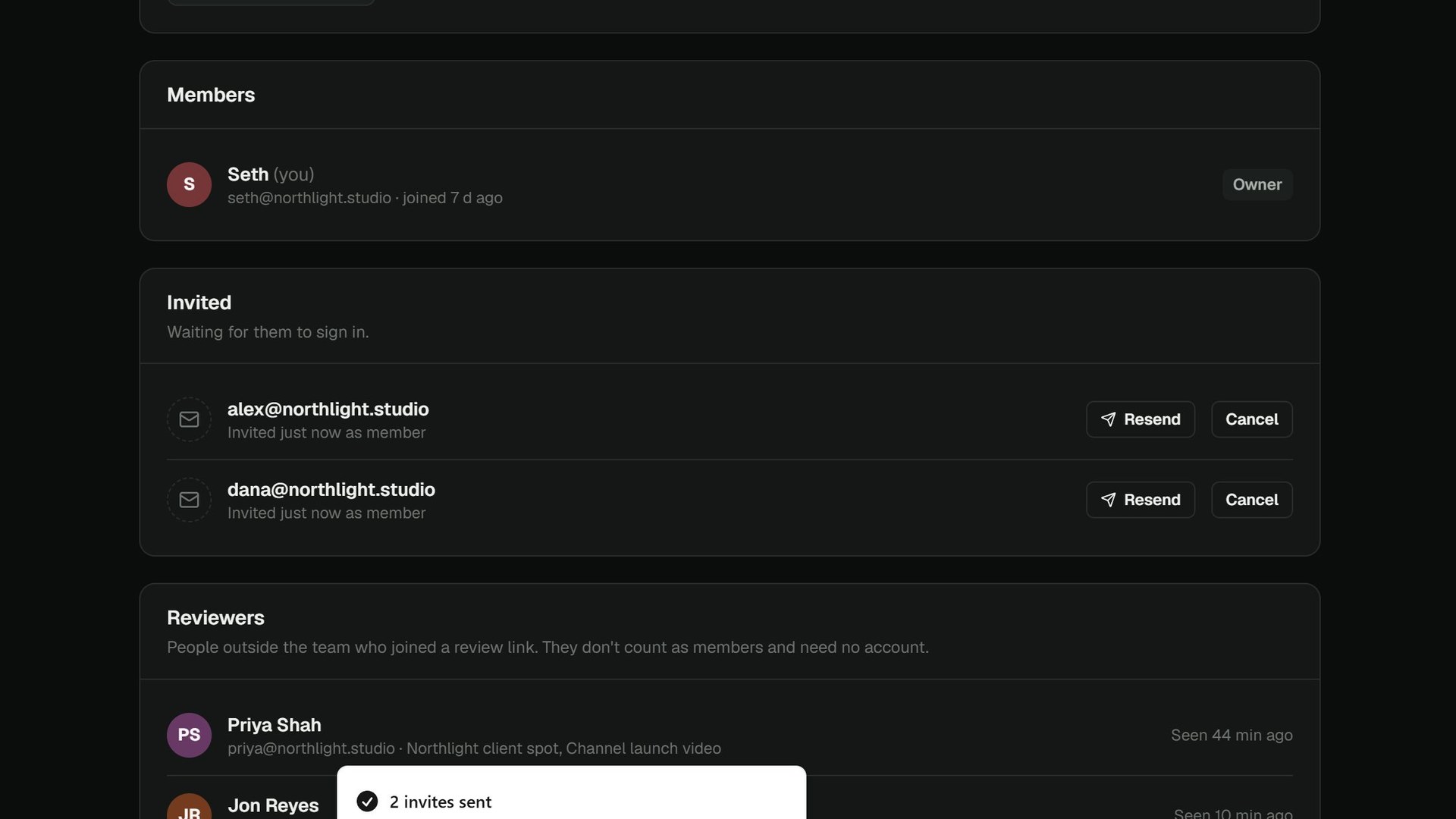 0:24Invite your teamInvite editors and producers by email, as a Member or an Admin. Reviewers on links are free guests and need no seat.
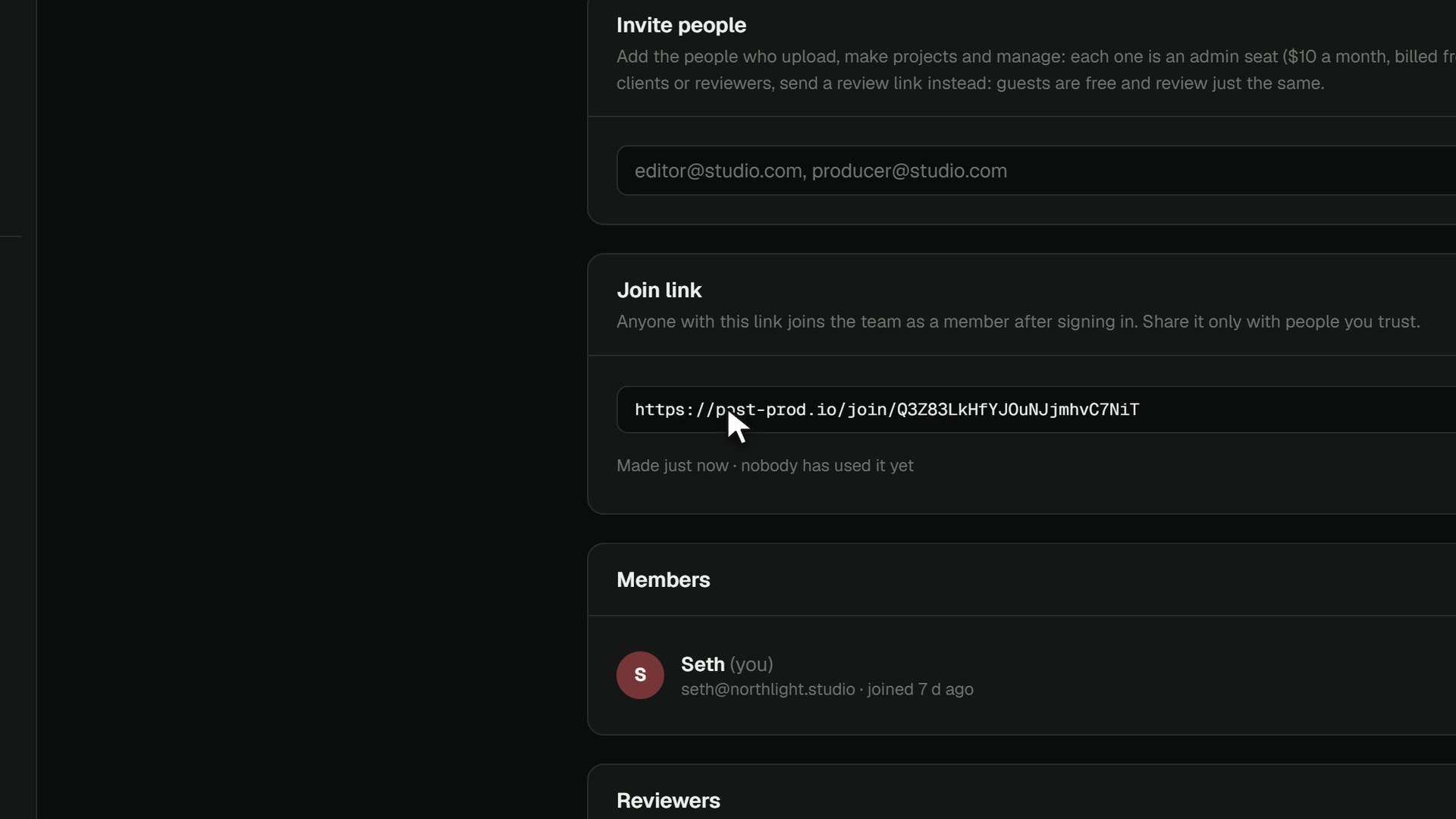 0:17Add people with a join linkMake one link anyone on your team can use to join; turn it off or make a new one at any time.
4 tutorials
Account & billing
Your plan and invoices, prices, your profile and notifications, and workspace settings.
The overview runs 0:54.
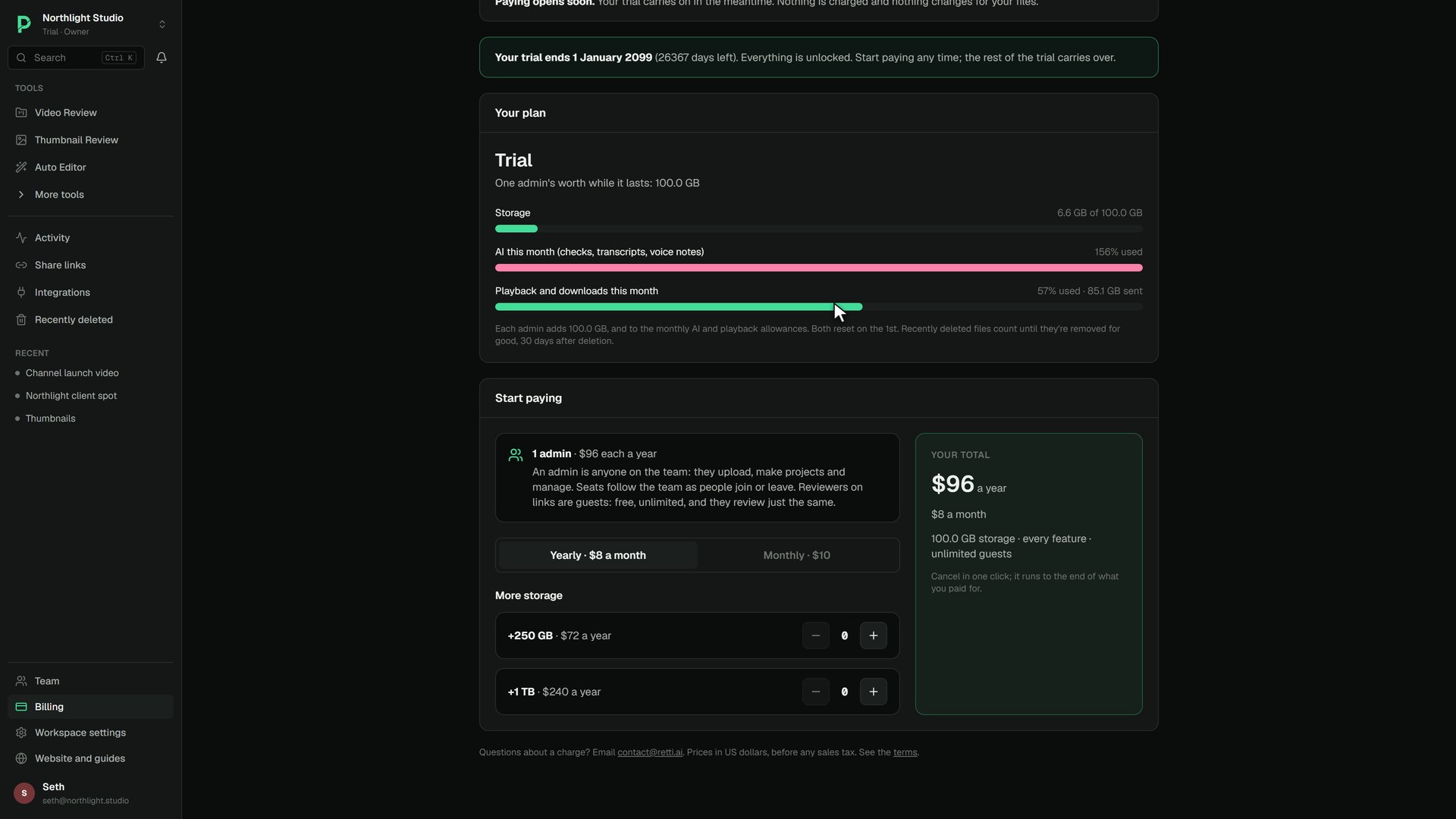 0:21Your plan and billingSee your plan, your trial, admin seats and storage, and your invoices, all on the Billing page.
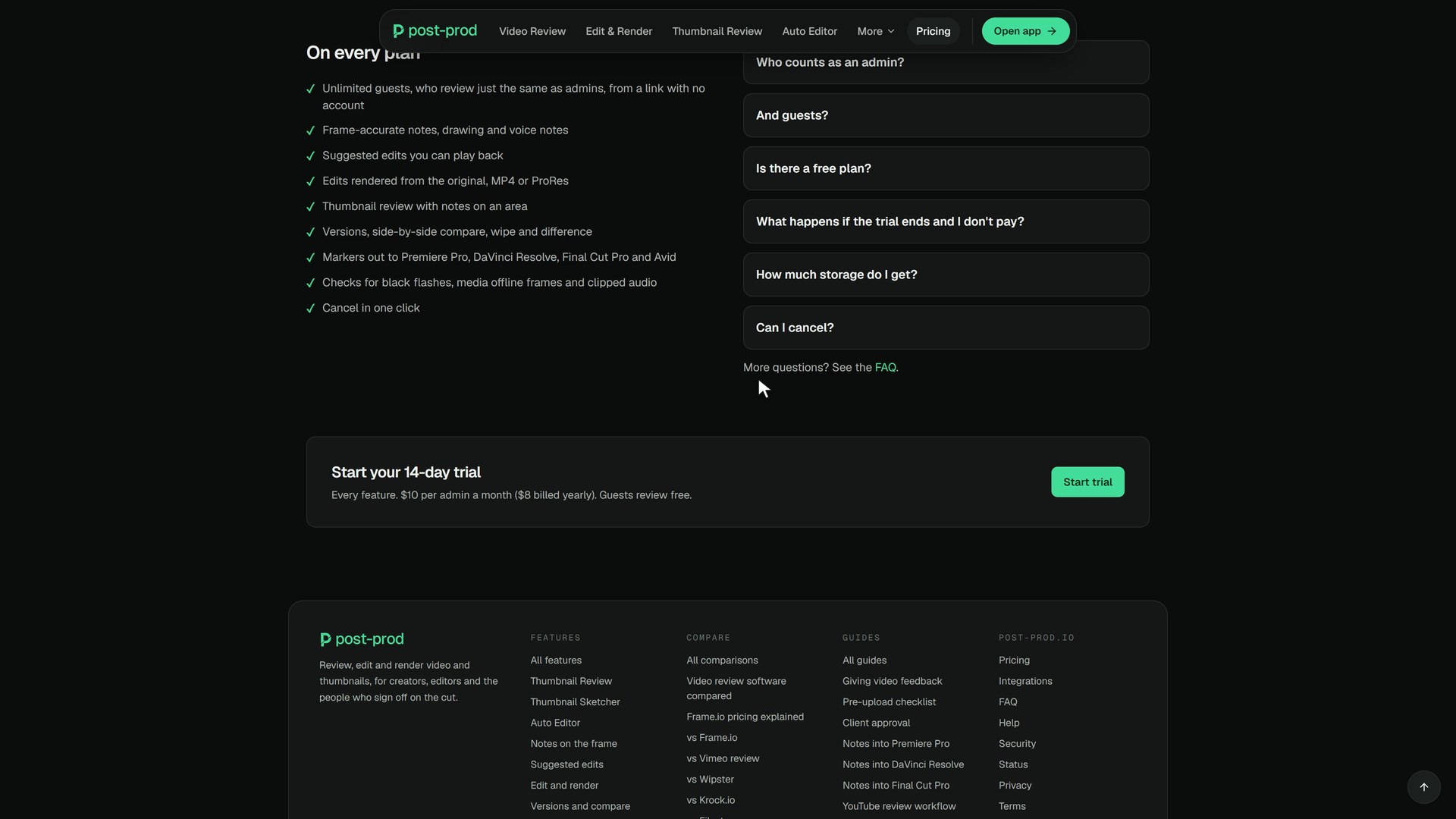 0:22Compare plans and pricesWhat an admin seat and extra storage cost, and why guests on review links are always free.
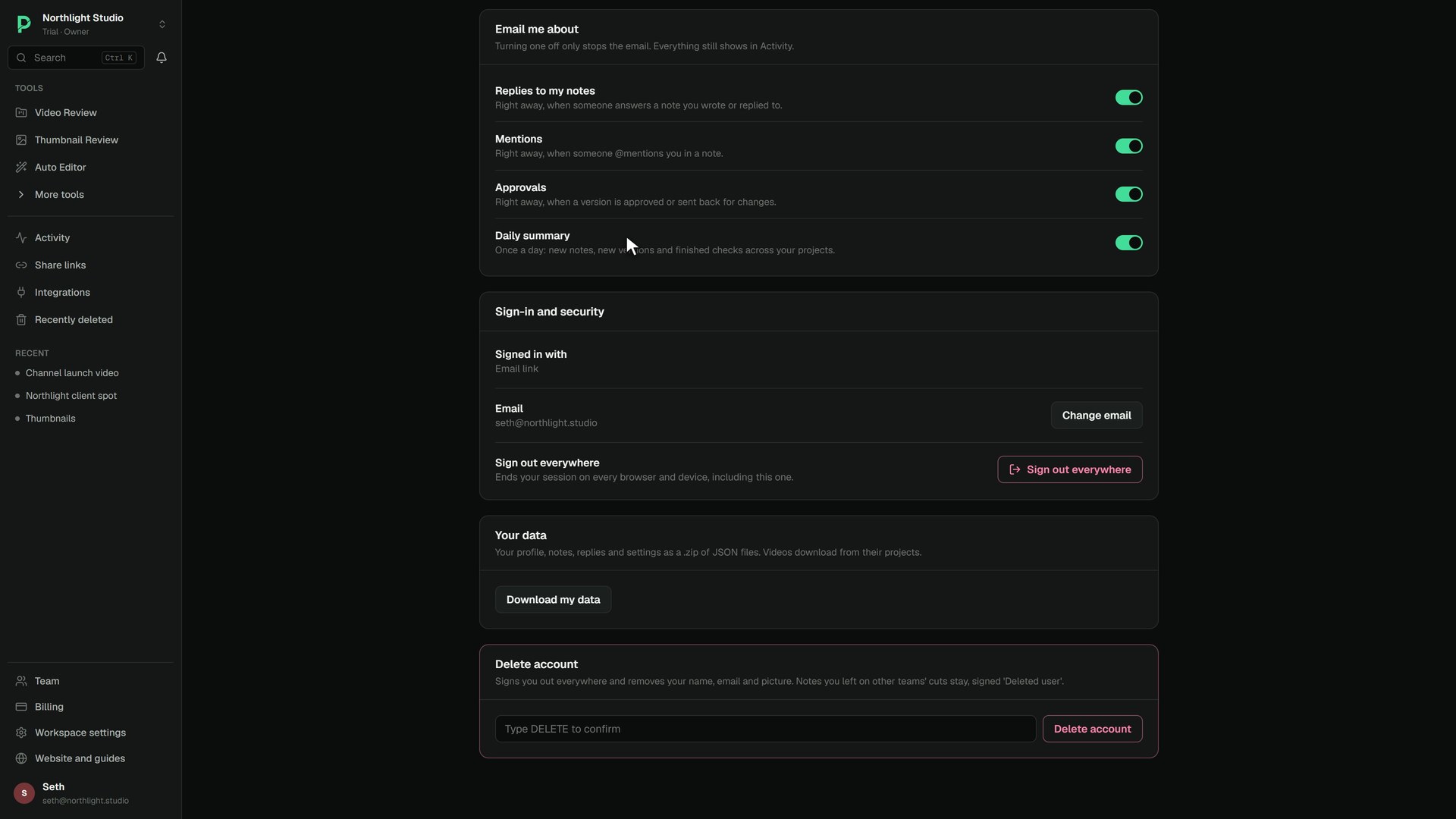 0:15Your name and email notificationsSet the name people see on your notes, and pick which emails you get: replies, mentions, approvals, the daily digest.
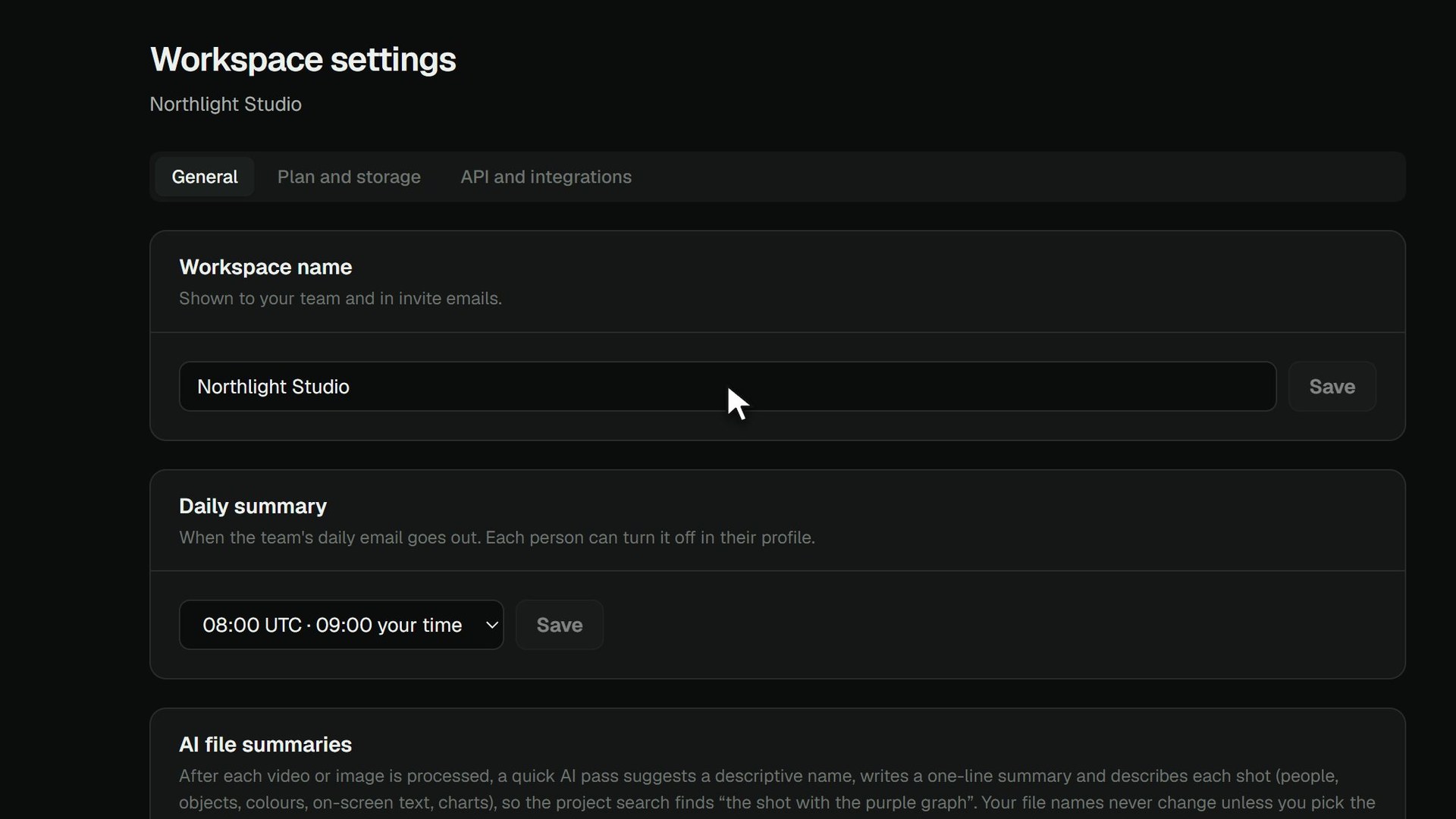 0:19Workspace settingsRename your workspace and set how it works for the whole team, in Workspace settings.
Try it on your own cut
Every feature. $10 per admin a month ($8 billed yearly). Guests review free.